Highlights of this lab:
This lab extends your knowledge of basic illumination
After the lab lecture, you have approximately one week to:
- Add Blinn-Phong Specular Lighting code from the lab example shader to the exercise code.
- Add distance based attenuation to your positional lights.
- Complete the code I started for you so you have multiple lights at once.
- Move lighting calculations and modify varyings between the vertex and fragment shaders to achieve Phong shading and get smooth highlights.
- Create and name a material of your own.
Lab Notes
Start with the files from Light2.zip.
In last week's lab you saw these pictures. They show a full implementation of the Blinn-Phong reflection equation being applied in three different ways. The first is flat shading - one colour is used for one whole primitive (triangle). The second is Gouraud shading - reflection is only calculated at the vertices, and colours are interpolated. The last is Phong shading - the full lighting equation is performed per fragment in the fragment shader. This week you will see results that look like all three columns. At first your code will be doing Gouraud shading with only diffuse lighting. You will add the Blinn-Phong specular component to a vertex shader, which produces the whitish highlight you see. The smoothness or flatness you will observe will be created entirely in the model - either by using the same normal for all vertices of a primitive (flat-like results) or a normal aligned with the intended curvature. As you can see, curved surfaces look better in Gouraud shading when there's a high resolution mesh - increasing the number of vertices will converge on Phong-like results. However, we would like specular highlights without extra data, so you will then move the lighting calculation from the vertex shader to the fragment shader to do Phong shading.
| Flat Shading | Gouraud Shading | Phong Shading | |
|---|---|---|---|
| 10 x 10 (200 triangles) |
|||
| 30 x 30 (1800 triangles) |
|||
| 90 x 90 (16,200 triangles) |
|||
Figure 1:Torus at different resolutions lit with Blinn-Phong reflection and shaded with different shading models.
A. Blinn-Phong Equation Revisited
When you start to work with lighting, you move beyond color to normals, material properties and light properties. Normals describe what direction a surface is facing at a particular point. Material properties describe of what things are made of — or at least what they appear to be made of — by describing how they reflect light. Light properties describe the type and colour of the light interacting with the materials in the scene. Lights and materials can interact in many different ways. Describing these many different ways is one reason shaders are so important to modern 3D graphics APIs.
One common lighting model that relates geometry, materials and lights is the Blinn-Phong reflection model. It breaks lighting up into three simplified reflection components: diffuse, specular and ambient reflection. In this week's lab we will focus on specular reflection. The other two are left here for your reference.
Specular Reflection
Specular reflection represents the shine that you see on very smooth or polished surfaces. Phong specular reflection takes into account both the angle between your eye and the direction the light would be reflected. As your eye approaches the direction of reflection, the apparent brightness increases. It assumes that light will be scattered toward the mirror reflection direction. A special shininess parameter is used to control how tight this scattering is. The Blinn-Phong specular reflection is very similar to Phong, but it fixes some technical shortcomings having to do with backscatter (compare the curves you see if figure 5). Instead of using the reflection vector it uses a vector that is halfway between the light and the eye. This vector is then compared to the normal.
The Blinn-Phong specular component is calculated by these equations:
h = (e+l)/|(e+l)|
Is = ms Ls (h · n)s
Where:
- Is is the intensity of specular reflection
- ms is the material's specular colour
- Ls is the light's specular colour
- l is the normalized direction to the light
- e is the normalized direction to the eye
- n is the surface normal
- s is the exponent that controls shininess.
| Specular exponent | |||
|---|---|---|---|
| 1 | 10 | 100 | |
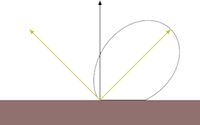
| Phong | 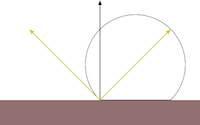 |
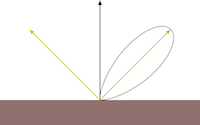 |
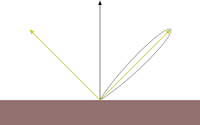 |
| Blinn-Phong | 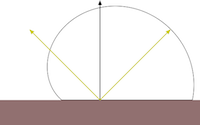 |
 |
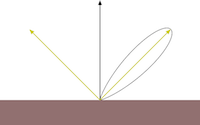 |
Figure 2: Phong vs Blinn-Phong With Varying Shininess Values.
Both the Phong and Blinn-Phong reflectance functions cause a highlight to
appear around the direction of reflection. Blinn-Phong has a fix that allows a near-diffuse disctribution at
low
shininess. Notice that at shininess 1 the Phong highlight would be invisible past 90° from the reflection
direction, but Blinn-Phong is visible well past that point. Blinn-Phong also appears slightly more diffuse at
all
shininess values than Phong.
Figure 3: Interactive Lighting Calculation Exploration Tool
Click and drag on the tip of the eye and light arrows to change light and eye positions. The curves drawn
around
the point show the half-scale (relative to the normal) shape of a cross section of the lighting reflectance
distribution function where the eye, light, normal and vertex all lie in the same plane. If Lambertian and
one specular function are selected, the sum of the functions is shown. If all three are selected, they
are
overlaid.
Putting Things Together
This specular colour is added to the diffuse and ambient colours described in last week's lab. The illumination of an object from one light, then, is the sum of each of these components.
A vertex shader that implements all of this is included in Demo 1. Its code is shown below. The new specular lighting code is highlighted for your convenience:I = Is + Id + Ia
#version 300 es

//inputs
in vec4 vPosition;
in vec3 vNormal;

//transform uniforms
uniform mat4 p;     // perspective matrix
uniform mat4 mv;    // modelview matrix

//lighting structures
struct _light
{
    vec4 diffuse;
    vec4 ambient;
    vec4 specular;
    vec4 position;
};

struct _material
{
    vec4 diffuse;
    vec4 ambient;
    vec4 specular;
    float shininess;
};

//lighting constants
const int nLights = 1; // number of lights

//lighting uniforms
uniform bool lighting;  // to enable and disable lighting
uniform vec4 uColor;    // colour to use when lighting is disabled
uniform _light light[nLights]; // properties for the n lights
uniform _material material;    // material properties

//outputs
out vec4 varColor;

//globals
vec4 mvPosition; // unprojected vertex position
mat4 Nm; // normal matrix
vec3 mvN; // transformed normal
vec3 N; // fixed surface normal

//prototypes
vec4 lightCalc(in _light light);

void main()
{
  //Transform the point
  mvPosition = mv*vPosition;  //mvPosition is used often
  gl_Position = p*mvPosition;

  //Construct a normal matrix to fix non-uniform scaling issues
  Nm = transpose(inverse(mv));
  //Transform the normal
  mvN = (Nm*vec4(vNormal,0.0)).xyz;


  if (lighting == false)
  {
	  color = uColor;
  }
  else
  {
    //Make sure the normal is actually unit length,
    //and isolate the important coordinates
    N = normalize(mvN);

    //Combine colors from all lights
    varColor.rgb = vec3(0,0,0);
    for (int i = 0; i < nLights; i++)
    {
        varColor += lightCalc(light[i]);
    }
    varColor.a = 1.0; //Override alpha from light calculations
  }
}

vec4 lightCalc(in _light light)
{
  //Set up light direction for positional lights
  vec3 L;

  //If the light position is a vector, use that as the direction
  if (light.position.w == 0.0)
    L = normalize(light.position.xyz);
  //Otherwise, the direction is a vector from the current vertex to the light
  else
    L = normalize(light.position.xyz - mvPosition.xyz);

  //Set up eye vector
  vec3 E = -normalize(mvPosition.xyz);

  //Set up the half vector
  vec3 H = normalize(L+E);

  //Calculate the Specular coefficient
  float Ks = pow(max(dot(N, H),0.0), material.shininess);

  //Calculate diffuse coefficient
  float Kd = max(dot(L,N), 0.0); // clamps light to 0 if light behind surface

  // What happens to specular if the light is behind the surface???

  //Calculate colour for this light
  vec4 color =  Ks * material.specular * light.specular
               + Kd * material.diffuse * light.diffuse
               + material.ambient * light.ambient;

  return color;
}
Appropriate changes should be made to get and set the specular colour and shininess uniforms. The process is similar to what you observed with diffuse and ambient lighting.
Specifying Material Properties
Classic OpenGL has five material properties affect a material's illumination. They are introduced in the Blinn-Phong model section and implemented in the shaders in lab demo 2. They are explained below.
- Diffuse and ambient properties:
- The diffuse and ambient reflective material properties are a type of
reflective effect that is independent of the viewpoint. Diffuse lighting
describes how an object reflects a light that is shining on the object. That
is, it is how the surface diffuses a direct light source. Ambient lighting
describes how a surface reflects the ambient light available. The ambient light
is the indirect lighting that is in a scene: the amount of light that is coming
from all directions so that all surfaces are equally illuminated by it. Both
properties are usually set to the similar colours, though the ambient colour is
usually scaled down or darker than the diffuse colour.
- Specular and shininess properties:
- The specular and the shininess properties of the surface describe
reflective effects that are affected by the position of the viewpoint. Specular
light is reflected light from a surface that produces the reflective highlights
in a surface. The shininess is a value that describes how focused the
reflective properties are.
- Emissive property:
- Emissive light is the light that an object gives off by itself. Objects
that represent a light source are typically the only objects that you give an
emissive value. Lamps, fires, and lightning are all objects that give off their
own light.
- Our shader does not support emissive values as such, but we can simulate it by disabling lighting and using a uniform colour. The light spheres in this week's sample are represented this way.
Choosing the Material Properties for an Object
The steps are as follows:
- Decide on the diffuse and ambient colors;
- Decide on the shininess of the object.
- Decide whether the object is giving off light. If it is, assign it the emissive properties
Seeing the effects of varying material properties may help you select the ones you want.
In this week's first demo - seen below - specular, diffuse and ambient material properties have been implemented. The program provides convenient colour pickers to allow you to select different specular and diffuse/ambient colours interactively. It also provides sliders to rotate the light about the Y-axis and change the shininess value. You should take some time to get familiar with the effects of the different properties. You will be expected to design your own specular material in the exercise after you add specular features to the exercise code.
Click here to view demo on its own.
B. Distance and Positional Lights
In the real world a point light source, or positional light, will have less power to light an object the farther the two are apart. This is called attenuation. Because the light spreads out in an ever increasing sphere, the intensity of the light decreases in inverse proportion to the square of the distance. Classic OpenGL has three parameters to calculate the attenuation factor: constant, linear, and quadratic attenuation. These three factors are used as shown in this equation:
float attenuation = 1.0;
if (/* light is positional */)
{
   float dist = length(light.position.xyz - mvPosition.xyz);
   attenuation = 1.0/(constant + linear * dist + quadratic * dist*dist);
}
This calculation is applied separately to the entire colour of each light - you multiply that light's colour by the attenuation, something like this
// where color is the color result for one light
// and attenuation is 1 for directional lights
color = attenuation * color;
- Constant attenuation is easiest to work with for beginners, and it gives an easy way for you to dim the lights - just crank up the constant attenuation.
- Linear attenuation sometimes gives more natural results if you are not doing HDR tone mapping or some other colour correction.
- Quadratic attenuation is the physically correct term to use, but it causes extreme light differences at short distances, so it is sometimes avoided.
This Desmos graphs can help you visualize the impact of the different coefficients on attenuation with distance and might help you pick coefficients to suit your needs: https://www.desmos.com/calculator/yxblulfnor
Attenuation is not implemented in the shaders in this week's lab. This is left for you to do as an exercise.
C. Hemisphere Lighting
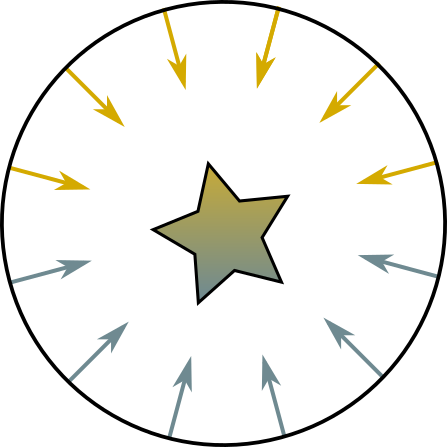
Specular lighting adds a lot to the diffuse and ambient lighting you learned last week. But there's more to add to diffuse lighting. The ambient components are a hack to simulate global illumination, and they do a pretty poor job. Unless you use textures, there's no detail to be seen in ambient light - only a flat silhouette. Hemisphere is a better looking hack that extends the light all around the object. Like diffuse/ambient it uses two light colours, but each is considered to be in opposite hemispheres shining down on the object. Toward the middle, their colours blend smoothly. These colours are intended to represent the sky and the ground, but many implementations allow you to specify the direction of the north pole, or top hemisphere, so it becomes simple to specify, directional, two colour global illumination.
This picture illustrates the intent:
 |
|---|
| Figure 5: Hemisphere lighting's concept. Light falls on the object from two opposite hemispheres and blends across the object. |
Downward facing normals are lit entierly by the bottom hemisphere. Upward facing normals are lit entirely by the upper hemisphere. Angled normals are linearly blended (or lerped) between the two based on their angle to the "north pole" or top direction.
The proper equation for this is:
Color = a · TopColor + (1 - a) · BottomColor
Where:
a = 1.0 - (0.5 · sin(Θ)) for Θ ≤ 90°
a = (0.5 · sin(Θ)) for Θ > 90°
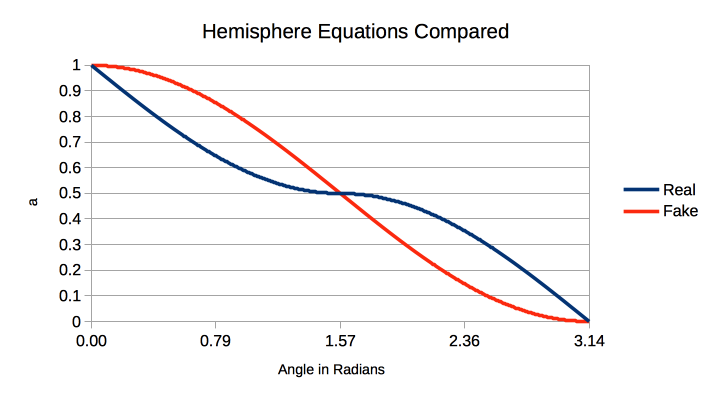
This can be simplified without too much error to:
a = 0.5 + (0.5 · cos(Θ))
Which replaces an expensive sin() with a cos() and saves a branch instruction. Remember, both paths through a branch are always executed in WebGL shader programs. Since this method of global illumination is already approximate, the error is mostly harmless. Here are the two curves overlaid on each other:
 |
|---|
| Figure 6: Comparison of real vs. fake a calculation for hemisphere lighting. |
The following shader implements hemisphere lighting:
#version 300 es
//hemisphere lighting shader with optional diffuse lighting path

//inputs
in vec4 vPosition;
in vec3 vNormal;

//outputs
out vec4 varColor;

//structs
struct global_ambient
{
    vec4 direction;  // direction of top colour
    vec4 top;        // top colour
    vec4 bottom;     // bottom colour
};

struct _material
{
    vec4 diffuse;
};

//uniforms
uniform mat4 p;     // perspective matrix
uniform mat4 mv;    // modelview matrix


uniform _material material; // material properties
uniform global_ambient global;	// global ambient uniform

//globals
vec4 mvPosition; // unprojected vertex position
vec3 N; // fixed surface normal

void main()
{
  //Transform the point
  mvPosition = mv*vPosition;  //mvPosition is used often
  gl_Position = p*mvPosition;

  //Make sure the normal is actually unit length,
  //and isolate the important coordinates
  N = normalize((mv*vec4(vNormal,0.0)).xyz);

  //Make sure global ambient direction is unit length
  vec3 L = normalize(global.direction.xyz);

  //Calculate cosine of angle between global ambient direction and normal
  float cosTheta = dot(L,N);

  //Calculate global ambient colour
  float a = 0.5+(0.5*cosTheta);
  color = a * global.top * material.diffuse
  	      + (1.0-a)* global.bottom * material.diffuse;
  color.a = 1.0; //Override alpha from light calculations
                 // (only needs to be done once)
}
And here is a working hemisphere and Lambertian sample for you to experiment with:
Observe how much detail you can make out in the shadows with Hemisphere Lighting as compared with Lambertian Directional Lighting. Notice, also, that the Lambertian blows out the whites if you just increase the brightness of shadows - this is because the ambient and diffuse colours are added rather than linearly blended as with Hemispherical lighting.
Assignment
Start with the files from Light2.zip. This lab adds two useful libraries - Apple's
j3di.js, which provides an OBJ file loader. They are in the lab folder for
your
convenience. You might want to consider putting copies in the Common folder for your own future use.
If you don't use Visual Studio Code's Live Server extension or host your work on a real server, Batman - a local .obj file - will not show up in any of the samples. This is the time to switch if you've been moving the shaders into your HTML files!
The white ball in the center of the screen is interactive. You can move it side to side and forward and back with the WASD keys. It can also be moved up and down with the Q and E keys. You will enhance this light with specular calculations and distance fading (attenuation). You will also add a second light to the lamp post and make the shiny spots from the lights look nicer with Phong shading. Good luck!!
Goals:
- implement specular lighting calculations in glsl
- understand common attenuation calculations
- learn how to use multiple lights in glsl
- learn how Phong shading is accomplished in glsl
- play with light and material properties to produce a pleasing result
Instructions
L5E.html and L5E.js. There are //EXERCISE #: comments
scattered
throughout the code to help guide you through the following numbered items. Please try to keep these intact. I
may
have missed a couple, but I tried to be thorough.- _/2 EXERCISE 1: Add specular illumination code to
gshader.vertandL5E.js. Specifically:- Add the
specularmember to the_light
and
_materialstructures where indicated - Add the
- Add the
shininessmember to the_materialstructure where indicated - Add the specular highlighting calculations to the
lightCalc()function where indicated - Note the specular colours and shininess that are already added to
light[0],material.clayandmaterial.redPlastic - Search for and note the places
specularLocandshininessLochave already been queried from the shader and added to convenience functions so they can easily be set at the same time as other lighting properties. - In testing, you should see a white highlight that follows your glowing ball, especially on the sphere if you increase Sphere Rez (careful - there's a big performance hit at high Rez).
- _/2 EXERCISE 2: Add attenuation code to
gshader.vertandL5E.js. Specifically:- In
gshader.vert, addattenuationcoefficients as a member of the_lightstructure where indicated. - In
gshader.vert, add the light distance and attenuation calculations to thelightCalc()function where indicated. - Multiply the return of the
lightCalc()function by the attenuation. - In
L5E.js, add attenuation coefficients tolight[0]. To understand how the quadratic, linear and constant coefficients interact, you can try playing with this Desmos plot - In
L5E.js, continue following the EXERCISE 2: markers to find where to request your attenuation uniforms and send them to the shader. Finish this work by example. - In testing, you should notice that lighting changes a lot more as you move the glowing ball. The scene should get noticeably darker as the light moves away from your objects.
- In
- _/2 EXERCISE 3: Complete the code to allow 2 or more lights to
gshader.vertandL5E.js. Specifically:- In
gshader.vert, change thenLightsconstant as directed. You can add more lights later by changing this number. - In
gshader.vert, add a for loop around the line wherelightCalc()is called so that it is called once for every light. - In
L5E.js, use a loop to request uniform locations for your new lights where indicated. It is easiest to hard code a number to match the shader since you cannot query the value of a constant from a shader program. Some GL programmers use string parsing to make the two values match. - In
L5E.js, add propeties for your new light(s) where indicated. - In
L5E.js, set the second light's position in World coordinates to match the sphere on the lamp post.
If you are extra clever, you can make it so the light automatically follows the lamp post if you change its location... - In testing, you should notice a subtle light coming from the direction of the lamp post regardless of the position of the floating ball.
- In
- _/2 EXERCISE 4: Make a Phong shading version of your multi-light specular shader so you can see
your
specular highlights more clearly. Specifically:
- Copy
gshader.vertandgshader.fragtopshader.vertandpshader.fragrespectively. - Move all the lighting structures, lighting constants, lighting
uniforms and the
lightCalc()function and prototype frompshader.verttopshader.frag. - Move the code marked as Color Calculation from
pshader.vert's main topshader.frag's main. The last line ofpshader.fragshould be the one that setsfragColor = varColor;. - In
pshader.vert, remove thevarColoroutput andNglobal. Switch themvPositionandmvNglobals to outputs. - In
pshader.frag, switch thevarColorinput to a global, addvec3 N;as a global, and adjust your inputs to matchpshader.vert's outputs. - In
L5E.js, follow the EXERCISE 4 comments to uncomment the line that initializes thephongshader program, then use it instead ofgouraud. - In testing, you should see very smooth highlights on the red plastic sphere at all resolutions.
- Copy
- _/2 EXERCISE 5: Make and name a material property for Batman or an OBJ of your choice.
Specifically:
- In
L5E.js, add at least one material to thematerialobject where indicated. Be sure to give it a descriptive name like the samples you see there. - You can use the color pickers and sliders in the lab notes to help you design your material. MacOS has a built-in Digital Color Meter app that is perfect for this.
- Replace Batman's clay material with yours.
- Optional: replace Batman with an OBJ of your choice, or give him a friend. Ask your lab instructor for help converting free models from free3d.com if they don't work directly off the site.
- In testing, you should see your material on Batman or other OBJ of your choice.
- In
/10
Deliverables
- A zip file containing a copy of your Lab5 and Common folders.
- The Lab5 folder should contain HTML, javascript and shader files with a complete solution to the exercise. Please write the name of your material with a description at the top of your HTML document.
- Please either put your solution into L5E.html and L5E.js or into files clearly marked as belonging to the exercise. Please try to leave the EXERCISE #: intact as you work.
References
- j3di.js on github
- j3di.js sample on the official Khronos WebGL Wiki Tutorial
- jscolor.js Javascript Color Picker
- The Hemisphere Lighting concept and math are from "OpenGL Programming Guide 8th Ed.: The Official Guide to Learning OpenGL Version 4.3" by Dave Shreiner, Graham Sellers and John Kessenich, Hemisphere Lighting section